
THE CHANNEL+ GUIDES
IPTV not working? Start with what is on your screen
If your IPTV is not working, start by identifying the symptom on your screen. This guide will walk you through simple checks to help you understand the issue and provide useful information to your provider.
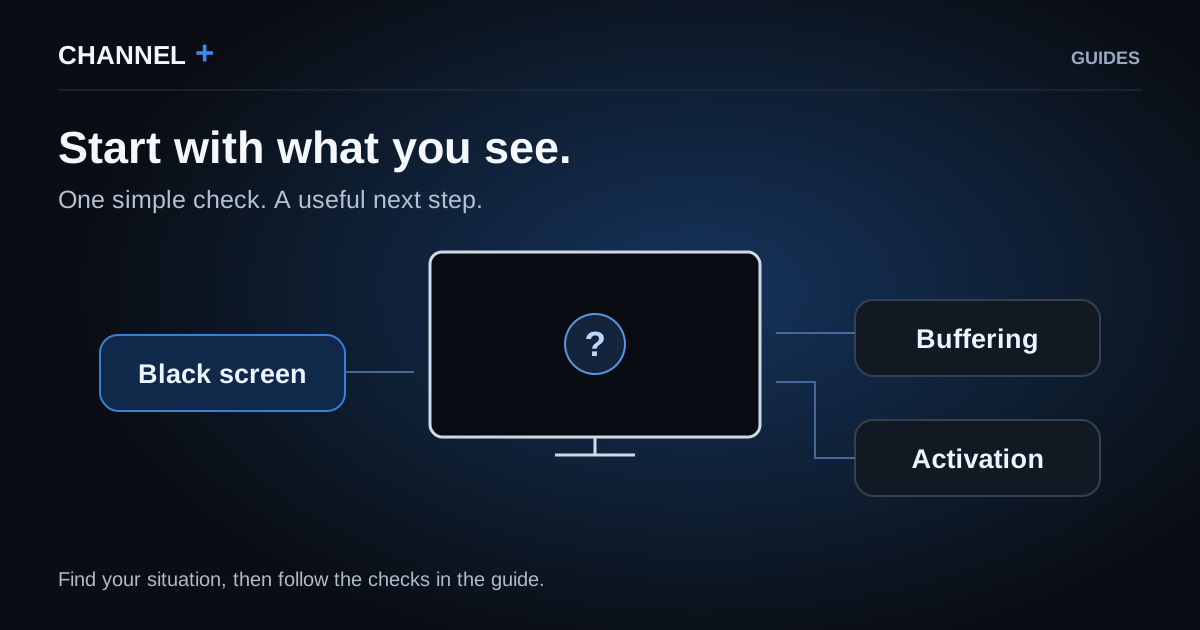
Jump to your situation
Identify the symptom on your screen
You sit down to watch, press play, and nothing happens. Before changing settings, start with what you can actually see. A blank channel, an activation notice and a programme that keeps stopping need different first checks. Go straight to the section that matches your screen. CHANNEL+ customers can ask our team for help without completing this guide first.
An app asks me to pay or activate it
An IPTV subscription and the app that plays it are separate things. Your subscription gives you access to programmes. The player lets your device show them, and some players have a separate licence. HotPlayer, for example, says that activating its app does not supply channels. Take a photo of the message and check your original order with your seller before paying again. Ask whether the request concerns the app or the subscription, and whether the app licence was included. For an expired-account or incorrect-login message, send the exact wording to your subscription provider. Do not post passwords in a public group.
References : [3]
One channel stays black
Try another channel in the same app, then one more. If those play normally, keep your installation as it is. Note the affected channel and the time, and send these to support. You have given them something precise to check. If other channels are blank too, use the next section. A successful channel does not prove that your connection or provider is fault-free; it simply narrows the symptom.

No channels start
Try restarting the device you watch on, using its own documented procedure. Samsung documents unplugging the television from the mains for at least 30 seconds. Google TV documents unplugging the device for one minute, reconnecting it and using the remote's power button. For another device, follow its normal restart instructions or ask for help. Restart is not factory reset: do not choose an option that erases your setup.
Open the app and try a channel again. If it plays, you can return to your programme. If not, open another video app that is already installed on the same TV, if you have one. There is no need to install another app just for this check. If that video plays, tell support that other video apps work. If it fails too, tell them that several apps are affected. Neither result proves the cause, but both help with the next check. No other video app? Simply tell support that none of your IPTV channels start.
It stops while someone else is watching
Are two devices using the same login? Stop playback on the other device, then try again. A CHANNEL+ individual access permits one active screen at a time. Our Multi-connect packs use a separate login for each screen. Put the correct access on each device rather than copying one login everywhere. If stopping the second stream helps, retain that arrangement; if it does not, report that playback still stops with only one screen active.
References : [5]
I am watching alone, but it keeps buffering
If the same channel is offered in HD and 4K, try its HD version. If HD plays, you can keep watching it and tell support which version fails. That result does not prove that your TV needs replacing. If HD also stops, or there is no other version, try a different channel. When several channels stop, use the other-video-app check above and report what happened. Do not buy a VPN or new equipment based on this symptom alone.
I hear sound but cannot see the picture
Try a different programme. Tell support whether one or several programmes are affected, along with your device and app name if you know them. This gives them useful context to investigate playback compatibility without asking you to diagnose the video format.
Before deleting the app
Make sure you can recover your access details and configuration first. Samsung warns that removing an app also removes its data in the documented process. If a seller set it up for you, ask for their help before deleting or resetting it.
References : [4]
A useful support message
Hello, since this evening I have [what you see]. I am using [device/app]. I tried [check] and [result]. Here is a photo. Could you help? Send it privately to your own provider. If you are with CHANNEL+, use our contact page. Our terms provide for a replacement server or a full subscription refund when channels stop working and we cannot resolve the technical problem. This is not an automatic refund for every interruption.
References : [6]
Sources & references
Find the original advice from the services and manufacturers mentioned.
- Samsung — application qui ne fonctionne pas et démarrage à froid
- Google TV — redémarrer un appareil qui ne répond pas
- HotPlayer — activation du lecteur sans chaînes fournies
- Samsung France — suppression d’une application et de ses données
- CHANNEL+ UK — Multi-connect packs and simultaneous viewing
- CHANNEL+ — UK subscription terms